
- Accessibility Remediation
- Website Accessibility
Accessibility Remediation: How to Fix WCAG Issues on Your Website
An accessibility audit tells you what's broken. Remediation is how you fix it. Learn the process, how to prioritize, who fixes what, and how to prevent new issues.
Quantity Discounts
Price per course
6 to 20 courses
$20.95
21 to 50 courses
$17.95
51 to 200 courses
$13.95
201+ courses
Custom offer
An accessibility audit tells you what is wrong. Remediation is the work of fixing it. For most organizations, this is where compliance effort is concentrated — the audit takes days, but remediation takes weeks or months depending on the volume of issues and the complexity of the fixes involved.
This page covers the remediation process from start to finish: how to prioritize findings from an audit report, who should own each type of fix, how to handle the most common WCAG failures technically, how to prevent new issues from being introduced after remediation, and how to document your work for compliance purposes.
The Remediation Process: Five Phases
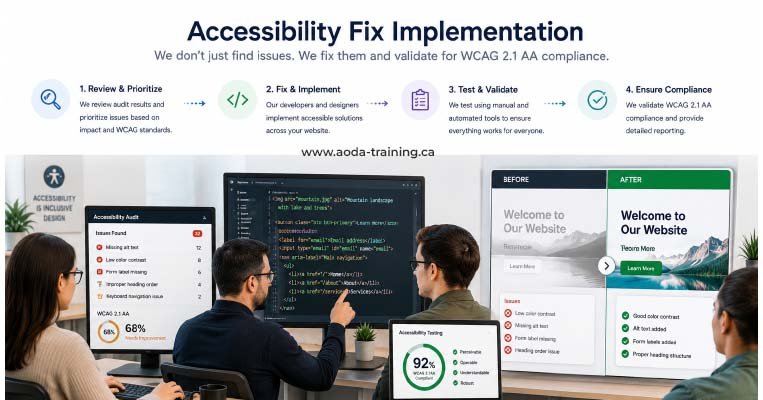
Effective remediation follows a structured sequence. Organizations that try to fix everything simultaneously typically make slower progress and introduce new issues. Working phase by phase, in severity order, is faster and more reliable.
Before anyone writes a line of code, work through the audit report and classify every finding by severity and by who owns the fix. This prevents remediation effort from being misdirected and ensures Critical issues are addressed first.
- → Group all Critical findings — these block task completion for users with disabilities and must be addressed first
- → Group Serious findings — these significantly impair access and should follow immediately after Criticals
- → Identify all template-level issues — issues that appear on many pages because of a shared component; one fix resolves all instances
- → Assign each finding to its owner: developer (code), designer (colour, focus indicators), content editor (alt text, link text, headings), document owner (PDFs)
Address all Critical and Serious findings in the audit report. For most sites, this represents the issues that most significantly affect real users. Complete this phase before moving to Moderate issues.
- → Fix all keyboard navigation failures — menus, modals, forms, and interactive components that cannot be operated without a mouse
- → Fix missing alt text on all meaningful images on high-traffic pages
- → Fix colour contrast failures on text across all key pages
- → Fix form label and error message issues
- → Fix missing captions on all videos
- → Retest each fix after implementation — confirm the specific issue is resolved and no new issues introduced
Work through Moderate and Minor findings. These have lower individual impact but can accumulate to create a poor overall experience. Template-level Moderate fixes are high-priority within this phase.
- → Fix heading structure issues across page templates
- → Fix vague link text — all "Read more" and "Click here" instances
- → Add skip navigation links where missing
- → Fix focus indicator visibility on remaining interactive elements
- → Remediate PDF documents or provide accessible alternative formats
- → Fix page language declaration issues
After remediation is complete, retest the fixed pages to confirm issues are resolved correctly. Document the results. This retest report is your compliance evidence.
- → Retest all Critical and Serious findings using the same methodology as the original audit
- → Verify that template-level fixes have resolved all instances across the site
- → Document pass/fail status for each original finding
- → Produce a retest report showing original issues and their resolution status
- → Flag any issues that were only partially resolved or introduced new failures
Remediation fixes existing problems. Without process changes, new issues accumulate at the same rate as old ones are fixed. Integrate accessibility into your development and content workflows so new work starts accessible.
- → Add automated accessibility checks (axe DevTools) to the development QA process
- → Integrate axe-core into your CI/CD pipeline so checks run on every pull request
- → Add accessibility review to content publishing checklists
- → Brief content editors on alt text, heading structure, and link text requirements
- → Agree accessible design standards for new components and page templates
- → Schedule periodic re-audits — annually for active sites, or after major redesigns
How to Prioritize: Severity First, Template Issues Second
The audit report assigns a severity rating to each finding. Use severity as your primary ordering principle — not page location or issue type.
| Severity | Definition | Remediation priority | Example |
|---|---|---|---|
| Critical | Prevents task completion. No workaround available. | Fix before next deployment | Checkout button cannot be reached by keyboard. Blind users and keyboard users cannot purchase. |
| Serious | Significantly impairs access. Workaround may exist but not obvious. | Fix within 2 weeks | Dropdown nav reachable by keyboard but items cannot be selected without a mouse. |
| Moderate | Causes difficulty but most users can still complete the task. | Fix within 4–6 weeks | Form placeholder text is the only label. Disappears on input. Difficult but not impossible to complete. |
| Minor | Technical failure with low real-world impact. | Backlog — normal development cycle | Decorative image alt text could be improved but does not prevent information access. |
Who Fixes What: Routing Issues to the Right Owner
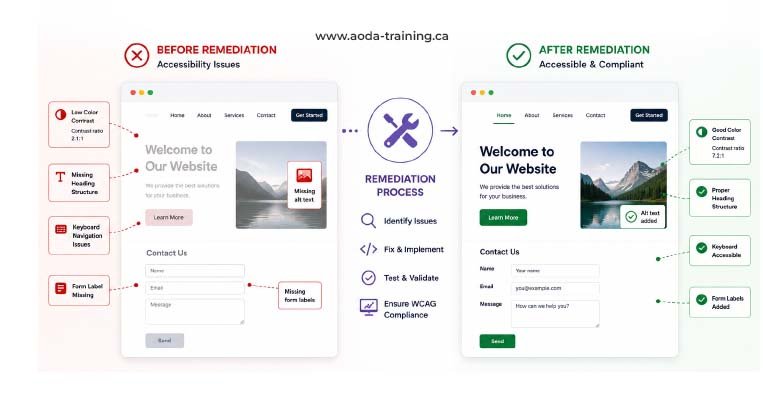
Accessibility remediation crosses multiple teams. Routing each finding to the right owner prevents bottlenecks where everything waits for a developer when many issues are content or design changes.
| Issue type | Who fixes it | What the fix involves |
|---|---|---|
| Missing or poor alt text on images | Content editor / digital marketing | Write accurate, purposeful alt text for each affected image. Update in CMS. Train to prevent recurrence. |
| Colour contrast failures | Designer + front-end developer | Designer updates colour palette to meet minimum ratios. Developer updates CSS. May require design system changes. |
| Missing form labels | Front-end developer | Add <label for=""> elements or aria-label attributes. Verify each field has a persistent visible label. |
| Keyboard navigation failures | Front-end developer | Rebuild components to be keyboard-operable. Fix focus management in modals and dropdowns. Test with keyboard and NVDA. |
| Missing video captions | Content team / video producer | Produce accurate captions (human-reviewed). Upload as .vtt or .srt subtitle files. Do not rely on auto-generated captions alone. |
| ARIA errors on custom components | Front-end developer | Add correct ARIA roles, properties, and states. Test with screen reader to confirm announcements are correct. |
| Vague link text | Content editor | Rewrite link text to describe the destination: "Read more" → "Read the AODA compliance guide". Update in CMS. |
| Heading structure issues | Content editor | Correct heading hierarchy using CMS heading styles. Never use bold text as a substitute for heading markup. |
| Inaccessible PDFs | Document owner + accessibility specialist | Remediate PDF tagging in Adobe Acrobat or InDesign, or replace the PDF with an accessible HTML alternative. |
| Missing skip navigation | Front-end developer | Add a visually hidden skip link at the top of the page template. Confirm it appears on keyboard focus and works correctly. |
Technical Fix Guidance: The Most Common WCAG Failures
Here is specific technical guidance for the issues that appear most frequently in WCAG remediation projects. Each card shows the issue, the WCAG criterion, the fix, and what the code should look like before and after.
Add an alt attribute to every img element. For images that convey information, describe the purpose (not just the appearance). For decorative images, use alt="".
<img src="chart.png">
<img src="chart.png" alt="Bar chart: Q4 revenue up 12% year-on-year">
Increase contrast between text colour and background to at least 4.5:1 for body text, 3:1 for large text. Use the Colour Contrast Analyser to verify ratios before and after.
color: #999999;\nbackground: #ffffff;
color: #595959;\nbackground: #ffffff;
Associate every form field with a visible <label> element using a matching for/id pair. The label must persist visibly — placeholder text alone does not satisfy this criterion.
<input type="email"\n placeholder="Enter email">
<label for="email">\n Email address\n</label>\n<input type="email" id="email">
When a modal opens, move focus into the modal. Trap focus inside the modal while it is open (Tab cycles through modal elements only). When the modal closes, return focus to the trigger element.
Modal opens but focus stays on\nthe page behind it. Tab navigates\nbackground. Escape does not close.
On open: focus → first modal element.\nTab/Shift+Tab cycles within modal.\nEscape closes + returns focus to trigger.
Remove outline: none / outline: 0 from CSS, or replace it with a clearly visible custom focus style. The focus indicator must have at least 3:1 contrast ratio against adjacent colours.
a:focus, button:focus {\n outline: none;\n}
a:focus, button:focus {\n outline: 2px solid #185FA5;\n outline-offset: 2px;\n}
Add ARIA role, state, and label to custom interactive components. Test with NVDA and VoiceOver to confirm screen reader announces the component correctly and reflects state changes.
<div class="toggle"\n onclick="toggle()">\n Enable notifications\n</div>
<button role="switch"\n aria-checked="false"\n onclick="toggle(this)">\n Enable notifications\n</button>
Preventing New Issues After Remediation
Remediation fixes what is already broken. Without process changes, new accessibility issues will be introduced with every content update, new feature, and design change. The goal after remediation is to make accessibility the default — not an afterthought.
- → Add axe DevTools to the browser development environment — run it before marking any ticket as done
- → Integrate axe-core into your CI/CD pipeline so automated checks run on every pull request
- → Create a component library of accessible, tested UI patterns
- → Add accessibility criteria to your definition of done
- → Check colour contrast of every colour decision before handoff using Figma plugins or the Colour Contrast Analyser
- → Design visible focus states for every interactive component — include them in design specifications
- → Annotate designs with expected ARIA roles and keyboard behaviour for custom components
- → Add an accessibility checklist to your content publishing process: alt text added, heading styles used, link text is descriptive
- → Train content editors on the three most impactful practices: alt text, headings, and link text
- → Set a policy that videos are not published without reviewed captions
- → Schedule automated scanning — weekly or monthly using axe or WAVE across key pages
- → Full manual re-audit every 1–2 years for active sites
- → Trigger re-audit after any major redesign or CMS migration
Documenting Remediation for Compliance Purposes
For AODA compliance purposes — particularly if your organization needs to file a compliance report or respond to a complaint — documentation of remediation progress is as important as the remediation itself.
Frequently asked questions
How long does accessibility remediation take?
- For a small website (up to 20 pages) with typical findings, Critical and Serious issues can usually be addressed in two to four weeks of developer and content team time. A full remediation pass including Moderate and Minor issues typically takes four to eight weeks. For larger or more complex sites, the timeline scales with page count, template complexity, and the volume of PDF documents. Starting with Critical issues on high-traffic pages delivers the most user impact in the least time.
Can we fix accessibility issues ourselves, or do we need a specialist?
- Many WCAG issues can be fixed by your existing development and content teams without specialist involvement — provided the audit report is specific enough to guide the fix. Content fixes (alt text, headings, link text) require no specialist knowledge, just training and discipline. Code fixes (ARIA, keyboard navigation, focus management) require front-end development skill. Complex issues like custom widget ARIA patterns or PDF remediation may benefit from specialist involvement, particularly for retesting to confirm correct implementation.
What if we can't fix everything at once?
- Address Critical and Serious issues first — the ones that prevent users with disabilities from completing core tasks. Document your remediation plan and timeline. For AODA compliance purposes, a phased remediation plan with documented progress is significantly better than no plan at all. Organizations with large volumes of issues typically take a phased approach over several months, prioritizing by user impact.
Do we need to retest after fixing issues?
- Yes, always. It is common for a code change to fix one WCAG criterion while inadvertently introducing another issue. Retesting each fix before moving on catches these secondary failures early. For compliance documentation purposes, retest results are essential — they are the evidence that remediation actually worked, not just that work was done.
What is the difference between remediation and an accessibility overlay?
- Remediation means fixing the underlying code and content of your website so it genuinely meets WCAG 2.0 Level AA. An accessibility overlay is a JavaScript plugin that attempts to fix accessibility issues automatically by adding a layer on top of your existing code. Overlays do not produce genuine WCAG compliance, have been widely rejected by accessibility specialists and disabled users, and do not protect your organization from AODA enforcement. Genuine remediation is the only approach that works.
Empower Your Team with Digital Accessibility
Ensure compliance, reduce legal risks, and build inclusive digital experiences.
Start AODA training for your team →Get Professional Help with Your Remediation
Whether you need a developer to implement specific fixes, a specialist to guide your team through complex ARIA patterns, or a complete remediation engagement with retesting — our accessibility team works with your development and content teams to resolve audit findings correctly.
- Developer-facing fix guidance with code examples for every finding
- Keyboard navigation fixes including focus management and modal behaviour
- PDF accessibility remediation
- Retest report documenting pass/fail status for all original findings
- ARIA implementation for custom interactive components
- Content editor training on alt text, heading structure, and link text
- Post-remediation retesting to confirm each fix is implemented correctly
- Process integration: how to prevent new issues in your development and content workflows