- Accessibility Audit Tools
- AODA Compliance Audit
Accessibility Audit Tools: Free vs Paid Comparison (2026)
Accessibility audit tools fall into two broad categories: automated scanners that analyse your HTML and flag technical issues, and assistive technologies that let you experience your site the way a user with a disability does. You need both — neither alone constitutes a WCAG compliance audit.
Quantity Discounts
Price per course
6 to 20 courses
$20.95
21 to 50 courses
$17.95
51 to 200 courses
$13.95
201+ courses
Custom offer
Accessibility audit tools fall into two broad categories: automated scanners that analyse your HTML and flag technical issues, and assistive technologies that let you experience your site the way a user with a disability does. You need both. Neither alone constitutes a WCAG compliance audit.
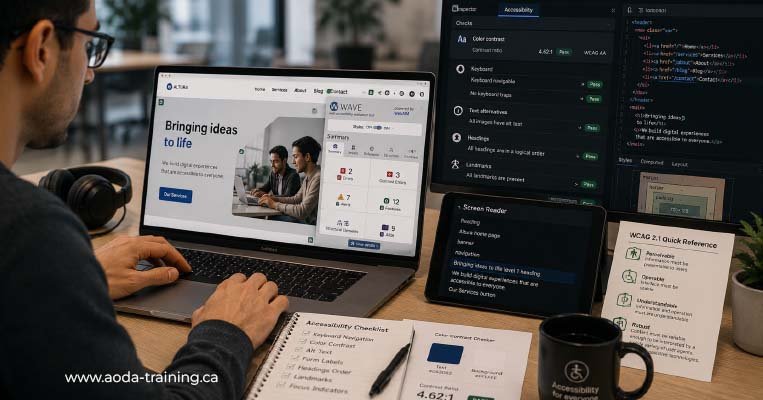
Automated accessibility tools, however sophisticated, detect only 30–40% of WCAG 2.0 Level AA failures. The remaining 60–70% require human judgment — evaluating whether alt text is meaningful, whether a page makes logical sense to a screen reader user, whether keyboard navigation is actually usable. Tools are the starting point for an audit, not the end of it.
Accessibility audit tools: quick reference
| Tool | Type | Cost | What it catches | Best for |
|---|---|---|---|---|
| axe DevTools | Browser extension + API | Free (basic) / Paid (Pro) | WCAG A + AA automated failures | Developer QA, CI/CD integration, audit baseline |
| WAVE | Browser extension + web | Free (extension) / Paid (API) | Visual overlay of errors, ARIA, structure | Quick visual check, client demos, content editors |
| Google Lighthouse | Chrome DevTools built-in | Free | Accessibility score with issue categories | Developer workflow, monitoring score changes |
| Colour Contrast Analyser | Desktop app | Free | Precise foreground/background contrast ratio | Design review, colour decisions, brand palette checks |
| axe DevTools Pro | Browser extension | Paid (subscription) | Guided manual testing + automated scanning | Professional auditors needing structured manual workflow |
| Deque WorldSpace Attest | Enterprise platform | Paid (enterprise) | Automated scanning + reporting + monitoring | Enterprises with large sites and compliance programmes |
| NVDA | Screen reader (AT) | Free | Real screen reader UX on Windows | AT testing, professional accessibility audits |
| VoiceOver | Screen reader (AT) | Free (built-in) | Real screen reader UX on macOS and iOS | Apple platform testing, mobile accessibility review |
| JAWS | Screen reader (AT) | Paid (licence) | Real screen reader UX — enterprise AT | High-fidelity testing; preferred AT of many blind users |
| TalkBack | Screen reader (AT) | Free (built-in) | Real screen reader UX on Android | Mobile testing for Android users |
Free automated scanning tools

axe DevTools is the most widely used automated accessibility testing tool in professional audits. Developed by Deque Systems, it runs directly in Chrome or Firefox DevTools and scans a page for WCAG A and AA failures that can be detected algorithmically. It has a low false-positive rate — issues flagged by axe are almost always genuine failures.
WAVE produces a visual overlay directly on the page being tested, showing icons for errors, alerts, structural elements, and ARIA attributes in context. Particularly useful for content editors and non-technical stakeholders because findings are visible on the live page rather than in a developer console.
Lighthouse generates an accessibility score alongside performance, SEO, and best-practices scores. It is convenient because it requires no installation. However, its accessibility scoring can be misleading — a score of 90+ does not mean the page is WCAG compliant.
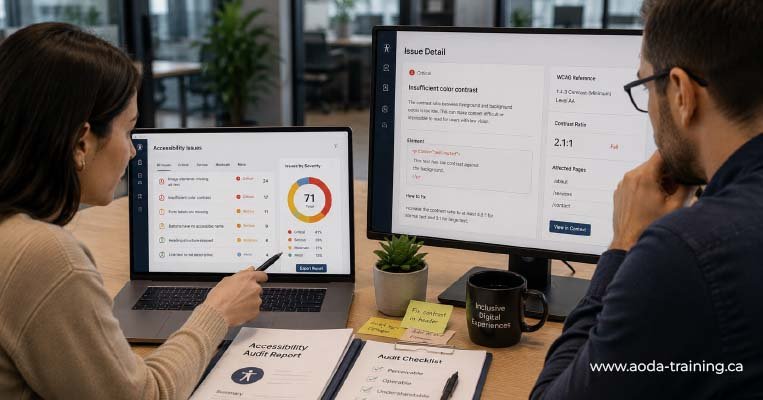
A dedicated tool for checking whether foreground and background colour combinations meet WCAG contrast requirements. Includes an eyedropper to sample colours directly from the screen — making it practical for checking colours on images, rendered dynamically, or in gradients, where automated tools struggle.
Paid automated scanning tools
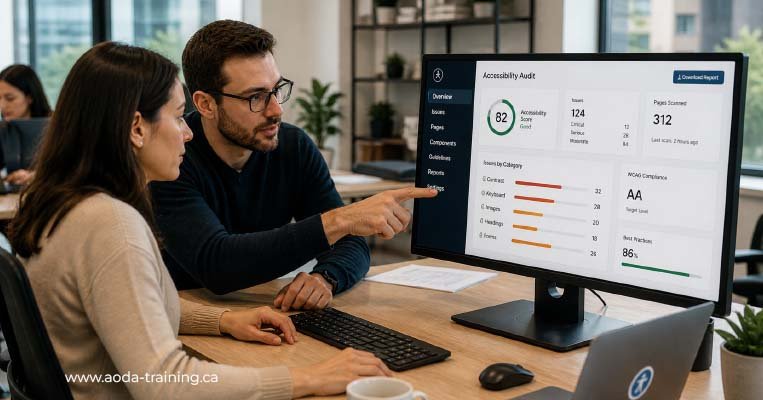
axe DevTools Pro extends the free axe extension with guided manual testing workflows. It prompts the tester through the WCAG criteria that cannot be automated — asking targeted questions and recording answers to build a structured audit record. This bridges the gap between automated scanning and the manual testing that professional auditors must document.
WorldSpace Attest is an enterprise accessibility testing platform that combines automated scanning with a centralized results dashboard, team collaboration features, and compliance reporting. Organizations with large websites, multiple teams, and ongoing compliance programmes use it to manage accessibility at scale.
Assistive technology tools: screen readers
Screen readers are the most important tools in an accessibility audit. They convert on-screen content to speech or Braille, and navigate web pages using keyboard commands rather than a mouse. Testing with a screen reader requires a trained tester — an untrained person running a screen reader and finding no obvious problems is not a screen reader test.
NVDA is the most widely used free screen reader and the one most commonly used in professional WCAG audits. In combination with Firefox, it represents the most important browser/AT testing combination for Windows-based accessibility testing. It reads page content aloud, allows keyboard navigation through headings, landmarks, links, and form fields, and announces the properties of interactive elements.
VoiceOver is Apple's built-in screen reader, available on all Macs, iPhones, and iPads. It behaves differently from NVDA in significant ways — some WCAG failures only manifest in VoiceOver, and some that appear in NVDA are handled gracefully by VoiceOver. Testing both is important for a complete picture.
JAWS is the most widely used screen reader among professional blind users — particularly in workplace environments. It handles certain ARIA patterns differently from NVDA. For organizations whose users include professional screen reader users (enterprise software, government services, financial platforms), JAWS testing provides a higher-fidelity picture of the professional user experience.
Choosing the right tool combination for your situation
| Goal | Recommended tool combination | What you will learn |
|---|---|---|
| Quick self-check (30 minutes) | axe DevTools (free) + WAVE on 3–5 key pages | High-volume automated failures on your most important pages. Useful for an initial gap assessment—not a compliance audit. |
| Developer QA during build | axe DevTools in browser DevTools or CI/CD + Lighthouse for score tracking | Automated issues introduced during development, caught before deployment. |
| Internal compliance check | axe DevTools + WAVE + Colour Contrast Analyser + manual keyboard testing + NVDA basic navigation | A more complete picture than automated tools alone. Identifies the most significant barriers. |
| Professional AODA audit | axe DevTools + WAVE + Colour Contrast Analyser + axe Pro (or structured manual workflow) + NVDA/Firefox + VoiceOver/Safari | Full WCAG 2.0 Level AA assessment. Suitable as evidence for compliance reporting. |
| Enterprise-scale programme | Deque WorldSpace Attest + axe Pro + NVDA + VoiceOver + JAWS | Organization-wide compliance tracking, CI/CD integration, team collaboration, and audit-grade AT testing. |
Common mistakes when using accessibility audit tools
- ▸ Treating a Lighthouse score of 90+ as evidence of WCAG compliance — the score is a weighted average, not a pass/fail assessment
- ▸ Running axe or WAVE once and marking issues as resolved without retesting after fixes
- ▸ Using only automated tools and declaring the site accessible — automated tools catch at most 40% of WCAG failures
- ▸ Testing with a screen reader without AT training — an untrained user finding no obvious problems does not mean no screen reader issues exist
- ▸ Testing in only one browser/AT combination — NVDA/Firefox and VoiceOver/Safari can behave very differently on the same page
- ▸ Not retesting dynamic content — many accessibility issues only appear after user interaction (form submission, modal opening, content loading)
- ▸ Relying on overlays or automated remediation plugins as a substitute for fixing the underlying code
Frequently asked questions
Is axe DevTools the best accessibility testing tool?
- axe DevTools is the most widely used automated accessibility tool in professional audits, with a strong reputation for a low false-positive rate. For automated scanning it is the best starting point. However, axe and WAVE catch different issues, and both should be used alongside manual testing and screen reader evaluation for a complete audit.
Does Google Lighthouse give an accurate accessibility score?
- Lighthouse provides a useful indicator but not an accurate compliance score. It converts pass/fail WCAG checks into a weighted percentage, which can make a page with critical accessibility barriers appear to score well. A page scoring 92/100 in Lighthouse can still have multiple failures that prevent blind users from completing key tasks. Use Lighthouse for development monitoring, not compliance assessment.
Do I need to buy JAWS to conduct a WCAG audit?
- Not necessarily. NVDA is free, widely used, and represents the most common Windows screen reader in professional WCAG audits. JAWS is recommended for high-stakes audits of complex applications or enterprise platforms where professional screen reader users are part of the target audience. For most Ontario business websites, NVDA + Firefox and VoiceOver + Safari provide sufficient AT coverage.
Can I use an automated tool to file my AODA compliance report?
- No. An automated tool report is not a compliance audit and is not a sufficient basis for filing an AODA compliance report. The compliance report is a legal declaration that your organization meets AODA requirements — which requires a genuine assessment including manual and AT testing in addition to automated scanning.
Are accessibility overlay tools a valid alternative to testing and fixing issues?
- No. Accessibility overlay products do not produce genuine WCAG compliance. They have been rejected as inadequate by accessibility specialists, disabled user communities, and courts in multiple jurisdictions. Using an overlay does not protect your organization from AODA enforcement. Genuine WCAG compliance requires fixing the underlying code — not adding a layer on top of it.
How do I test a website that requires login?
- Most automated tools can test authenticated pages if you log in first in the browser and then run the tool within that session. axe DevTools, WAVE, and Lighthouse all work in authenticated sessions. For AT testing, log in using the screen reader keyboard commands and test as a logged-in user. For CI/CD testing at scale, tools with API access and session cookie support — such as axe DevTools Pro — handle this more reliably.
Empower Your Team with Digital Accessibility
Ensure compliance, reduce legal risks, and build inclusive digital experiences.
Start AODA training for your team →Get a professional audit — not just a tool report
Automated tools are a starting point, not a finish line. Our AODA accessibility audits combine axe, WAVE, and manual WCAG testing with NVDA and VoiceOver screen reader evaluation — giving you a complete picture that no automated tool can produce alone.
- Manual WCAG 2.0 Level AA testing by a trained accessibility specialist
- Keyboard navigation testing across all interactive elements and user journeys
- Alt text quality review — not just presence, but accuracy and usefulness
- Screen reader testing with NVDA (Firefox/Windows) and VoiceOver (Safari/macOS)
- Colour contrast evaluation including text on images and gradients
- Prioritized report your development team can act on directly