
- Manual vs Automated Accessibility Testing
- AODA Compliance Audit
Manual vs Automated Accessibility Testing: Which Do You Need?
Every AODA compliance audit involves two types of testing: automated scanning and manual evaluation. They are not alternatives — they are complementary. Automated tools, manual testing, and AT testing each find different issues. A credible WCAG audit uses all three.
Quantity Discounts
Price per course
6 to 20 courses
$20.95
21 to 50 courses
$17.95
51 to 200 courses
$13.95
201+ courses
Custom offer
Every AODA compliance audit involves two types of testing: automated scanning and manual evaluation. They are not alternatives — they are complementary. Automated tools find different issues from manual testing, and manual testing finds different issues from assistive technology testing. A credible WCAG audit uses all three.
Automated accessibility tools, at their most capable, detect approximately 30–40% of WCAG 2.0 Level AA failures. Whether alt text is meaningful, whether a modal is navigable by keyboard in a way that makes sense, whether a screen reader announces form errors coherently — these require human judgment. No tool can provide it.
What automated testing does
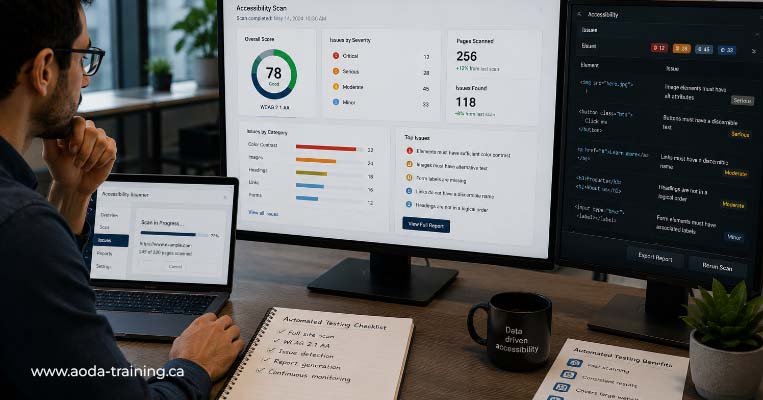
Automated accessibility testing uses tools — browser extensions, command-line scanners, or CI/CD integrations — to analyse a page’s HTML, CSS, and ARIA against a set of predefined rules. When a rule is violated, the tool flags it. The process is fast, consistent, and scalable.
What automated tools are good at
- Detecting the absence of required attributes — missing alt attributes on images, missing label elements on form fields, missing document language declarations
- Measuring colour contrast ratios against WCAG minimum thresholds
- Identifying duplicate IDs and other HTML validity issues that affect assistive technology
- Flagging ARIA attribute errors — invalid ARIA roles, missing required ARIA properties, or ARIA used on elements where it has no effect
- Finding missing document titles and missing skip navigation links
- Running consistently and quickly across large numbers of pages without fatigue
What automated tools are good at
Automated tools are binary: a rule either fires or it does not. They cannot evaluate context, intent, or user experience. This creates a class of WCAG failures that are genuinely invisible to automated tools:
- Alt text that is technically present but meaningless ("image.jpg", "photo") or that describes the image without conveying its communicative purpose
- Form labels that are syntactically associated with their field but do not describe the expected input clearly enough
- Heading structures that are syntactically correct but do not reflect the logical outline of the page
- Interactive elements that are keyboard-reachable but whose behaviour makes no sense when operated by keyboard
- Colour used as the only way to convey meaning — automated tools check that text contrast meets the ratio, but cannot assess whether an error state relies on a red border alone
- Dynamic content — modals, dropdowns, live regions — that renders correctly in static HTML but fails in practice when user interaction triggers it
What manual testing does
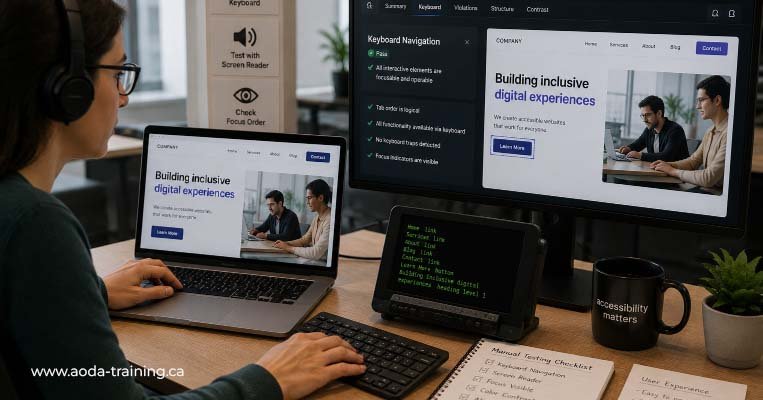
Manual testing is where a trained accessibility specialist evaluates a website against WCAG criteria that cannot be checked algorithmically. This means reading alt text and asking whether it conveys the same information as the image. Navigating a page by keyboard and evaluating whether the experience makes logical sense.
What manual testing covers that automated tools cannot
- Alt text quality — does it convey the meaning and purpose of the image, or just describe it literally?
- Link text meaningfulness in context — would a list of all links on the page help a screen reader user navigate?
- Heading structure logic — does the heading hierarchy reflect the page's actual content structure?
- Keyboard usability — is Tab order logical? Are focus indicators visible and helpful? Are there keyboard traps?
- Form usability without sight — can a user complete the form knowing only what is communicated through text and markup?
- Error message helpfulness — does the error message explain what went wrong and how to fix it?
- Colour and sensory use — is any information conveyed only through colour, shape, sound, or spatial position?
- Time limits — are users warned before a session expires? Can they extend it?
- Reading order in context — does the page make sense when encountered top-to-bottom, which is how screen readers experience it?
What assistive technology testing adds
Assistive technology (AT) testing means using a screen reader to navigate and interact with a website as a blind user would. It is the most revealing form of accessibility testing because it reproduces the actual experience of the users who face the most significant barriers.
AT testing frequently uncovers issues that both automated and manual testing miss:
- Custom interactive components — tabs, accordions, carousels, date pickers — that appear functionally correct in code but produce confusing or broken announcements in a screen reader
- ARIA live regions that are supposed to announce dynamic content updates but do not fire correctly in practice
- Heading structure logic — does the heading hierarchy reflect the page's actual content structure?
- Focus management in modals and dialogs — focus does not move into the modal, or does not return correctly when the modal closes
- The actual reading experience of a page — how the content sounds when read sequentially, which is significantly different from how it looks visually
- Platform-specific failures — a component that works correctly with NVDA may fail with VoiceOver, or vice versa
Some auditors describe their manual testing process as including 'screen reader checks' when they mean they have reviewed ARIA markup and heading structure visually. Visual review of ARIA is manual testing — it is not the same as navigating a site using a screen reader with speech output. Real AT testing means operating the screen reader as a blind user would, including browsing by heading, by landmark, by link list, and by interacting with forms and components using AT keyboard commands.
WCAG criterion coverage: automated vs manual vs AT testing
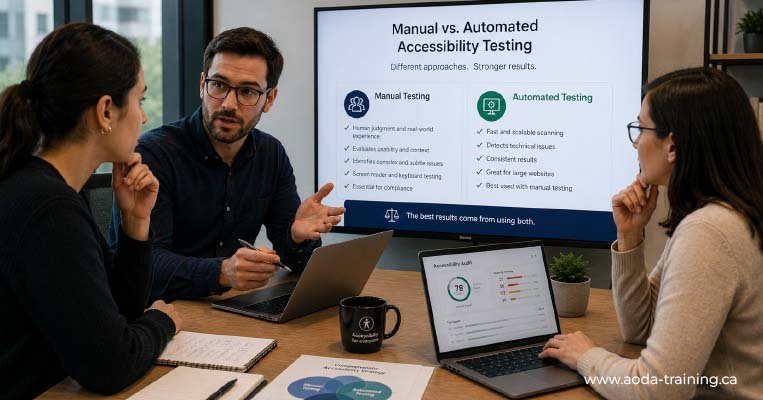
The table below maps key WCAG 2.0 Level AA criteria to the testing approach that detects them. ✓ = reliably detected, △ = partially detected or context-dependent, ✗ = not detectable by this method.
| WCAG | Description | Automated | Manual | AT Testing |
|---|---|---|---|---|
| 1.1.1 | Non-text content (alt text) | △ | ✓ | ✓ |
| 1.2.2 | Captions (pre-recorded) | △ | ✓ | △ |
| 1.3.1 | Info and relationships | △ | ✓ | ✓ |
| 1.3.2 | Meaningful sequence | ✗ | ✓ | ✓ |
| 1.3.3 | Sensory characteristics | ✗ | ✓ | △ |
| 1.4.1 | Use of colour | ✗ | ✓ | ✗ |
| 1.4.3 | Contrast (minimum) | ✓ | △ | ✗ |
| 1.4.4 | Resize text | ✗ | ✓ | ✗ |
| 2.1.1 | Keyboard accessible | ✗ | ✓ | ✓ |
| 2.1.2 | No keyboard trap | ✗ | ✓ | ✓ |
| 2.4.1 | Bypass blocks (skip nav) | ✓ | △ | ✓ |
| 2.4.3 | Focus order | ✗ | ✓ | ✓ |
| 2.4.4 | Link purpose | ✗ | ✓ | ✓ |
| 2.4.6 | Headings and labels | ✗ | ✓ | ✓ |
| 3.1.1 | Language of page | ✓ | △ | ✗ |
| 3.3.1 | Error identification | △ | ✓ | ✓ |
| 3.3.2 | Labels or instructions | △ | ✓ | ✓ |
| 4.1.1 | Parsing (valid HTML) | ✓ | △ | ✗ |
| 4.1.2 | Name, role, value | △ | ✓ | ✓ |
Automated vs manual: head-to-head
| Automated testing | Manual testing |
|---|---|
| Fast — scans a page in seconds | Slow — a thorough manual review of a complex page takes hours |
| Consistent — same rules applied identically every time | Variable — quality depends on tester skill and experience |
| Scalable — can run across thousands of pages | Labour-intensive — depth of coverage is limited by tester capacity |
| Integrated — can run automatically in CI/CD pipelines | Scheduled — must be planned and resourced separately |
| Catches 30–40% of WCAG failures | Catches the majority of the remaining 60–70% |
| Cannot evaluate context or meaning | Evaluates whether content and interactions make sense |
| No expertise required to run | Requires trained accessibility specialist to be meaningful |
| Result: a starting point | Result: a complete audit picture (with AT testing) |
When to use automated testing, manual testing, and AT testing
| Situation | Approach | Rationale |
|---|---|---|
| Developer building a new feature | Automated (axe in browser DevTools or CI/CD) | Catches technical failures as code is written. Fast feedback loop prevents issues from accumulating. |
| Content editor publishing a new page | Automated (WAVE for visual check) + manual alt text and link text review | Editors need immediate, visual feedback. Automated gives a quick check; manual ensures content quality. |
| Pre-launch QA for a new website | Automated + manual + AT testing | Full audit before launch. Identifies all three categories of issue before real users encounter them. |
| Annual AODA compliance review | Automated + manual + AT testing | Compliance evidence requires demonstrating that all testable WCAG criteria have been evaluated. |
| Post-complaint investigation | Manual + AT testing (automated as supplementary) | Complaints usually relate to usability issues — exactly what automated tools miss. Manual and AT testing are primary. |
| Ongoing monitoring between formal audits | Automated scanning (scheduled or CI/CD) | Catches new issues introduced by content updates or code changes between full audits. |
| Filing an AODA compliance report | Automated + manual + AT testing | A compliance report is a legal declaration. It requires a full audit, not automated scanning alone. |
Building a combined testing process
The most effective accessibility testing programmes use all three approaches in sequence, with each building on the last.
-
Step 1 — Automated scan: Run axe DevTools across all scoped pages. Export results. This gives you high-volume technical failures quickly.
-
Step 2 — Triage automated results: Review flagged items. Confirm genuine failures, investigate items requiring manual assessment, and remove any false positives.
-
Step 3 — Manual testing: Evaluate keyboard navigation, alt text quality, heading hierarchy, link purpose, form usability, colour use, and motion controls.
-
Step 4 — AT testing: Test key pages and user journeys using NVDA with Firefox and VoiceOver with Safari. Identify issues affecting real screen reader users.
-
Step 5 — Consolidate findings: Combine results from automated, manual, and assistive technology testing into a single prioritized issue list organized by WCAG criterion and severity.
-
Step 6 — Report: Produce an actionable audit report with prioritized findings, screenshots, code examples, and clear remediation recommendations.
Frequently asked questions
Is automated testing sufficient for AODA compliance?
- No. Automated testing catches 30–40% of WCAG 2.0 Level AA failures. The remaining 60–70% require manual testing and screen reader evaluation. An AODA compliance audit that relies only on automated tools will miss the majority of real accessibility barriers — including the ones most likely to prevent disabled users from completing core tasks.
How do I know which WCAG failures my automated tool missed?
- There is no automated way to know what automated testing missed — that is the nature of the limitation. The only way to find the issues that automated tools cannot detect is to conduct manual testing and AT testing. A professional accessibility auditor will work through the full set of WCAG success criteria, evaluating each one using the appropriate testing method.
Can a developer with no accessibility training conduct manual testing?
- A developer with WCAG knowledge can conduct useful manual testing — particularly keyboard testing and code review. However, manual testing is most effective when conducted by someone with practical experience evaluating web content for accessibility, including experience using assistive technologies. The gap between a technically correct implementation and one that works in practice for AT users is often only visible to someone who uses AT regularly.
How much does manual accessibility testing cost compared to automated?
- Automated testing tools are typically low cost or free (axe DevTools free, WAVE free, Lighthouse built into Chrome). Manual testing and AT testing require specialist time. A full manual + AT audit of a small website typically costs between $1,500 and $4,000. Automated scanning alone costs a fraction of this but provides a fraction of the compliance picture.
Should I run automated tests before or after manual testing?
- Always run automated tests first. Automated scanning identifies high-volume technical failures quickly. Fixing these before manual testing ensures manual testing time is spent on issues that automated tools genuinely cannot assess, rather than on issues that tools should have caught.
Do I need to test with both NVDA and VoiceOver?
- For a professional AODA audit, yes. NVDA and VoiceOver handle ARIA and HTML differently in significant ways. A component that works correctly with NVDA may fail with VoiceOver, or vice versa. For most Ontario business websites, NVDA with Firefox (Windows) and VoiceOver with Safari (macOS and iOS) cover the most important AT combinations.
Empower Your Team with Digital Accessibility
Ensure compliance, reduce legal risks, and build inclusive digital experiences.
Start AODA training for your team →Get a full audit — automated, manual, and AT testing combined
Our AODA compliance audits use all three testing methods in sequence: automated scanning with axe and WAVE, manual WCAG testing by a trained specialist, and screen reader testing with NVDA and VoiceOver. The result is a complete picture — not the 30–40% that automated tools alone provide.
- Automated scan with axe DevTools and WAVE across all scoped pages
- Screen reader testing: NVDA + Firefox (Windows) and VoiceOver + Safari (macOS and iOS)
- Prioritized report with WCAG references, severity ratings, screenshots, and code-level fixes
- Manual WCAG 2.0 Level AA testing: keyboard nav, alt text, link text, headings, forms, colour use
- Complete WCAG success criterion coverage — not just what automated tools catch
- Optional post-remediation retesting to confirm issues are resolved correctly