
- Alt Text Best Practices
- Website Accessibility
Alt Text Best Practices: WCAG 1.1.1 Requirements & Examples
WCAG 1.1.1 requires a text alternative for every non-decorative image. Learn when to write alt text, when to leave it empty, and how to handle complex images, icons, and SVGs.
Quantity Discounts
Price per course
6 to 20 courses
$20.95
21 to 50 courses
$17.95
51 to 200 courses
$13.95
201+ courses
Custom offer
Missing or inadequate alt text is the single most commonly found WCAG failure. The WebAIM Million report consistently finds it on more than 55% of home pages tested. It is also one of the easiest failures to fix once you understand the rules — and the most immediately impactful for blind and low-vision users who depend on screen readers to understand your content.
This guide explains what WCAG 1.1.1 actually requires, how to decide what to write for every type of image, and how to handle the trickier cases: complex images, SVGs, icon buttons, images of text, and images used as links.
What WCAG 1.1.1 Requires
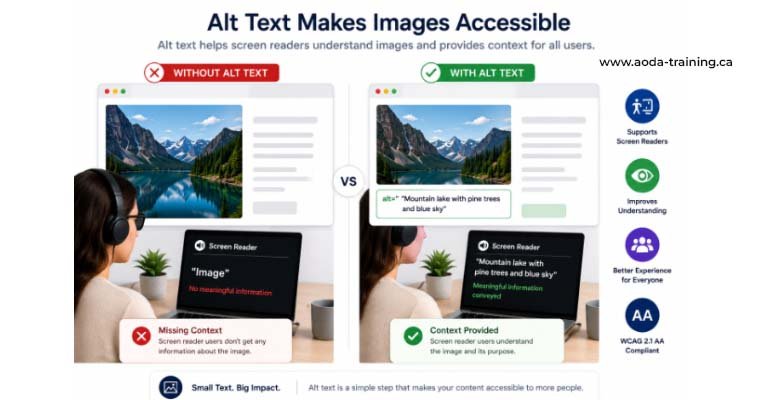
WCAG Success Criterion 1.1.1 — Non-text Content — is Level A, the minimum mandatory level. Under Ontario’s AODA, it applies to all public-facing websites of organizations with 50 or more employees, and to public sector organizations of any size.
The Five Image Types and What Alt Text Each Requires
The correct alt text depends entirely on why the image is on the page and what it communicates. WCAG identifies five distinct image categories, each with a different requirement.
Images that add visual interest but convey no information and perform no function. Removing them would not change a user's understanding of the page.
Photographs, illustrations, standalone icons, screenshots, and product images that convey information a user needs.
Images used as interactive controls: image buttons, image links, icon-only buttons. The alt text is the accessible name of the control.
Charts, graphs, infographics, diagrams, maps. A short alt identifies the image; a full text description appears in the page content.
Banners, promotional graphics, screenshots of documents, text overlaid on photos. The alt text must reproduce the exact text visible in the image.
How to Write Good Alt Text: Principles and Examples
Good alt text is not about describing what you see — it is about conveying what the image communicates in its context. The same photograph of a dog can need different alt text depending on whether it appears in an article about pet adoption, a product page for dog food, or a news story about a dog rescue.
Describe purpose and context, not just appearance
A photograph of a smiling woman on a careers page is not “a woman smiling.” It is “Employee at their desk in the company’s Toronto office” or “Team member collaborating at a whiteboard” — whatever the image communicates about working at the organization. Context determines meaning.
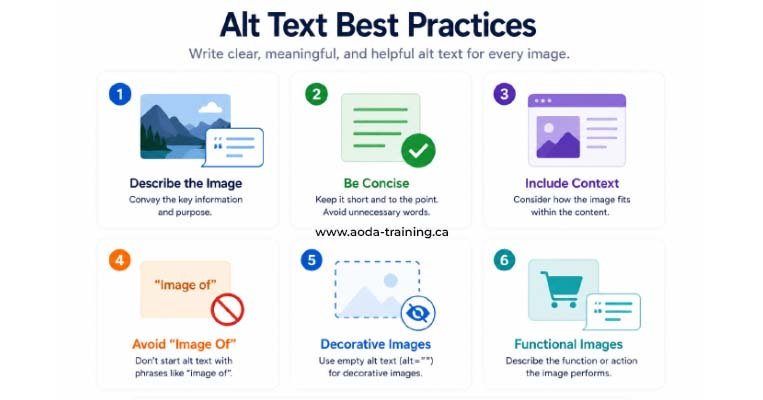
Be specific and concise — don't start with "Image of"
Aim for one clear sentence that captures the essential information. Screen readers already announce “image” before reading the alt text, so starting with “Image of” or “Photo of” creates “image, image of a dog.” Start directly with the substantive description.
| Context | Poor alt text | Good alt text | Why |
|---|---|---|---|
| Product page for a red running shoe | red shoe | Nike Pegasus 41 running shoe in crimson red, side profile view | Names the product, colour, and view angle — the information a shopper needs |
| News article about wildfires | fire | Aerial photograph showing wildfire smoke obscuring the Fraser Valley skyline, August 2025 | Describes what the image communicates in the article's context |
| Team page headshot | photo of person | Sarah Chen, Head of Accessibility, AODA-Training.ca | Identifies the person and role, which is why the photo is on the page |
| Icon-only print button | printer | Print this page | Describes the function, not the icon. The word 'button' is redundant — the element role provides that. |
| Infographic about AODA deadlines | AODA infographic | Infographic: AODA compliance deadlines by organization size — see full text below | Short summary plus a pointer to where the full data appears in the page |
| Decorative wave divider | decorative wave | (empty) alt="" | The image adds no information. An empty alt is correct — "decorative wave" adds noise for screen reader users. |
Pass and Fail Code Examples
Informative image — article photograph
alt="Construction worker reviewing blueprints at a Toronto job site"
alt="image" or alt="photo"
Functional image — logo used as a link
alt="AODA-Training.ca home page" — describes the link destination
alt="logo" — describes the appearance; user hears "link, logo" with no idea where it goes
Decorative image — background illustration
alt="" — empty attribute signals screen reader to skip this image
alt attribute omitted entirely — screen reader announces the filename:
graphic hero-abstract-bg-final.png
Icon button — close button with X icon
alt="Close" — describes what the button does; the role "button" is announced by the element itself
alt="X" — describes the visual shape, not the function; user must infer meaning
Complex Images: Charts, Infographics, Diagrams, and Maps
A short alt text attribute cannot adequately replace a complex image containing multiple data points, relationships, or detailed information. WCAG requires that the text alternative “serves the equivalent purpose” — which for a chart means conveying all the data, not just identifying that a chart exists.
The standard approach is a two-layer description: a brief alt text identifying the image type and subject, combined with a full text description in the surrounding page content or via a clearly labelled link.
Layer 1 — Short alt text (in the alt attribute)
Identify the image type and the subject. Keep it under 125 characters so screen reader users know what kind of content they are encountering and can decide whether to seek the full description.
alt="Bar chart: quarterly revenue 2024 by region — full data table below"
Layer 2 — Full description (in the page content)
Provide the complete data in text form, immediately below the image or accessible via a ‘View full description’ expandable section. The full description must be visible to all users — not only screen reader users.
<figure>
  <img src="revenue-chart.png"
       alt="Bar chart: Q1–Q4 2024 revenue by region — data table follows">
  <figcaption>
    <details>
      <summary>Chart data table</summary>
      <table> ... full data table here ... </table>
    </details>
  </figcaption>
</figure> SVGs and Icon Fonts
SVG images and icon fonts require slightly different treatment from standard <img> elements, but the same principle applies: meaningful SVGs need a text alternative; decorative SVGs must be hidden from assistive technologies.
Inline SVG elements
An SVG embedded directly in the HTML does not use the alt attribute. Provide a <title> element as the first child of the <svg>, then reference it with aria-labelledby. For decorative inline SVGs, add aria-hidden="true" to remove the element from the accessibility tree.
<!-- Meaningful inline SVG -->
<svg role="img" aria-labelledby="chart-title">
  <title id="chart-title">Pie chart: 60% mobile, 40% desktop sessions in March 2025</title>
  ...
</svg>

<!-- Decorative inline SVG -->
<svg aria-hidden="true" focusable="false"> ... </svg>
SVG files loaded via ![]()
SVG files referenced in an <img> tag use the alt attribute exactly like a standard image. Provide descriptive alt text for meaningful SVGs and alt="" for decorative ones.
Icon fonts (Font Awesome, Material Icons, etc.)
Icon fonts render icons as characters using CSS. They have no alt attribute. The accessible pattern is to use aria-hidden="true" on the icon element and provide the accessible name on the parent control.
<!-- Icon button with visually-hidden label -->
<button>
  <i class="fa fa-search" aria-hidden="true"></i>
  <span class="visually-hidden">Search</span>
</button> aria-hidden="true", an icon font character is read aloud as its Unicode character name or symbol — meaningless and disruptive. Always add aria-hidden="true" to icon font elements and provide the accessible name elsewhere on the control.Most Common Alt Text Failures in Ontario Websites
| Failure | What auditors find | Fix |
|---|---|---|
| Missing alt attribute entirely |
<img>
with no alt attribute; screen reader reads the filename
|
Add alt attribute to every
<img>;
empty for decorative, descriptive for meaningful
|
| Alt text is the filename |
alt="hero-banner-2024-v3.jpg"
copied automatically from the file system
|
Write a description of what the image communicates; never use filenames as alt text |
| Generic placeholder text |
alt="image",
alt="photo",
alt="graphic",
alt="icon"
|
Replace with specific description of what the image conveys in context |
| Alt text stuffed with keywords |
alt="AODA training Ontario AODA compliance AODA certification course"
|
Write for the user, not for search engines; describe the image's purpose; keyword stuffing is also an SEO penalty |
| Functional image describes appearance not function |
alt="magnifying glass"
on a search button
|
Describe what the control does:
alt="Search"
|
| Complex image with no extended description |
Infographic with 12 data points;
alt="infographic"
|
Add a full text equivalent adjacent to the image or in a linked accessible table |
| Redundant alt text duplicating adjacent caption | Image has alt text and an immediately adjacent caption with identical text; screen reader reads it twice |
Use
alt=""
when adjacent text fully describes the image
|
| Decorative image with descriptive alt text |
alt="decorative wave separator"
or
alt="blue background pattern"
|
Use
alt=""
for images that convey no information; descriptions add noise
|
| Image of text with no alt | Promotional banner containing text with no alt attribute | Reproduce the visible text verbatim in the alt attribute |
| Logo used as link describing the logo appearance |
<a href="/"><img alt="AODA Training logo"></a>
|
Alt should describe the link destination:
alt="AODA-Training.ca home page"
|
Making Alt Text Part of Your Content Workflow
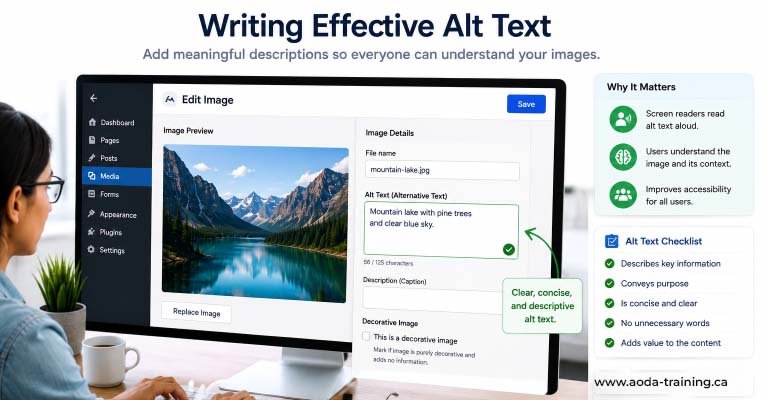
The most effective way to eliminate alt text failures is to build it into the content creation process. When content creators add images, they have the context to write accurate alt text. When alt text is added by a developer at audit time, they often lack that context.
| Role | Responsibility |
|---|---|
| Content editors and writers | Write alt text at the time the image is added to the CMS — they know the context and purpose of the image better than anyone else. |
| Designers | Mark images as decorative or meaningful in design assets and handoff documentation; specify the information each image needs to convey. |
| Developers | Ensure the CMS or component template surfaces an alt text field for every image and flags when alt is missing; never use filename as a default. |
| CMS administrators | Configure the platform to require alt text or explicit "mark as decorative" selection before an image can be published; disable automated filename-as-alt defaults. |
| QA and compliance reviewers | Include alt text review in content approval workflows; check for common failures before pages go live. |
Frequently asked questions
How long should alt text be?
- There is no strict length limit in WCAG, but 125 characters is a widely cited practical guideline. Screen readers handle longer text, but lengthy alt text is disruptive for users navigating a page with many images. Keep alt text to one or two concise sentences. For images that genuinely require more detail — charts, infographics, diagrams — use the two-layer approach: a brief alt attribute plus a full description in the adjacent page content.
Should I start alt text with 'image of' or 'photo of'?
- No. Screen readers already announce “image” before reading the alt text, so starting with “image of” or “photo of” results in the user hearing “image, image of a dog.” Start directly with the substantive description: “Golden retriever running on a beach.” The only exception is when distinguishing the image type adds meaning — for example, “Historical photograph: workers assembling cars at the Windsor Ford plant, 1942.”
Do CSS background images need alt text?
- No. Images set as CSS background images cannot have alt text and are automatically ignored by screen readers. This is correct and intentional for decorative images. However, if a CSS background image conveys meaningful information, that is the wrong implementation — move it to an
<img>element with appropriate alt text, or ensure the information it conveys is available in nearby page text.
What alt text should a logo have?
- It depends on whether the logo is a link. If the logo is a link to the homepage:
alt="[Organization name] home page"— the alt text describes the link destination. If the logo is a standalone image with no link:alt="[Organization name]"— the alt text identifies the organization. If the logo appears alongside the organization’s text name, making the logo redundant:alt=""— empty, because the adjacent text already conveys the same information.
Does alt text help with SEO?
- Yes, but not in the way keyword stuffing exploits it. Search engines use alt text to understand image content and index it in image search. Descriptive, accurate alt text that serves users also serves search engine crawlers. Keyword-stuffed alt text is penalised by modern search algorithms and is simultaneously an accessibility failure. Write alt text for users first; SEO benefits follow naturally from accurate, descriptive text.
What about images in PDFs and email?
- WCAG technically covers web content, but Ontario’s AODA Information and Communications Standard requires that digital documents — including PDFs — be accessible. Accessible PDFs require alt text on all meaningful images, set through the PDF’s tag structure (not the HTML alt attribute). Marketing emails should include alt text on all meaningful images because many recipients view email with images blocked, and alt text is the fallback that appears in place of the image.
Empower Your Team with Digital Accessibility
Ensure compliance, reduce legal risks, and build inclusive digital experiences.
Start AODA training for your team →Get Your Alt Text Audited
Automated scanners detect missing alt attributes, but they cannot judge whether existing alt text actually serves the equivalent purpose. Our WCAG compliance audit covers both automated detection and human review of every alt text decision on key pages.
- Automated scan for missing alt attributes and known failure patterns across all key pages
- Classification of every image as decorative, informative, functional, complex, or image-of-text
- Complex image assessment: are charts, infographics, and diagrams accompanied by adequate text alternatives?
- Prioritized findings report with image location, current alt text, classification, and specific corrected alt text
- Human review of all existing alt text for adequacy: does it serve the equivalent purpose in context?
-
Review of SVG accessibility: inline SVGs, SVG
references, and icon font implementation
- Functional image audit: do all icon buttons and image links have accessible names describing their function?