
- Common WCAG Failures & How to Fix Them
- Website Accessibility
Common WCAG Failures & How to Fix Them: 2026 Data & Fixes
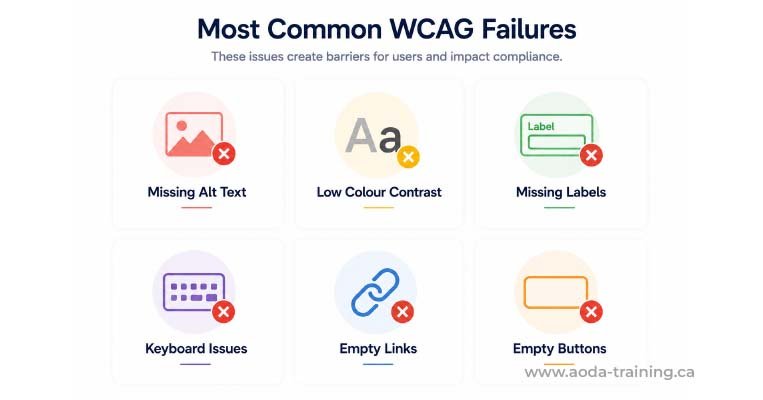
95.9% of websites have detectable WCAG failures. The same six errors account for 96% of all issues. This guide explains each one, who it affects, and the exact code fix — based on 2026 WebAIM data.
Quantity Discounts
Price per course
6 to 20 courses
$20.95
21 to 50 courses
$17.95
51 to 200 courses
$13.95
201+ courses
Custom offer
The 2026 WebAIM Million report — the largest automated accessibility snapshot on the web, covering one million home pages — found that 95.9% of pages had detectable WCAG failures, averaging 56.1 errors per page. That is up from 51 the year before, reversing six consecutive years of slow improvement. The same six error types have topped the list for seven consecutive years, accounting for 96% of all detected failures. They are not obscure edge cases. They are preventable with straightforward code changes.
The Six Failures That Account for 96% of All WCAG Errors
Text does not meet 4.5:1 (normal text) or 3:1 (large text / UI components) against its background. Average of 34 instances per page in 2026, up 15% from 2025. Common sources: light grey body text, white on mid-tone buttons, placeholder text, footer text.
Low-vision users, colour-blind users, older adults, anyone reading in bright sunlight.
Test every text/background colour pair with WebAIM Contrast Checker or TPGi Colour Contrast Analyser. Fix at the design system level. Placeholder text default (#AAAAAA on white = 2.3:1) always fails.
color: #595959; background: #ffffff;
color: #aaaaaa; background: #ffffff;
Images have no alt attribute, or have a filename, generic placeholder, or keyword-stuffed text. 44% of missing alt cases involve linked images, creating a navigation failure on top of a content failure.
Blind and low-vision screen reader users; users with images disabled; search crawlers.
Every <img> needs an alt attribute. Decorative: alt="". Informative: describe what the image communicates. Functional (image links/buttons): describe the action or destination. Complex (charts): short alt + full text description.
<img src="team.jpg" alt="Sarah Chen, Head of Accessibility">
<img src="team.jpg"> or alt="image"
Inputs have no <label>, a label with no for/id association, or rely solely on placeholder text that disappears on focus and is not reliably announced as a label.
Screen reader users who hear 'edit text, blank'. Speech recognition users who cannot activate fields by speaking the visible label. Cognitive disability users who lose context when placeholder disappears.
Every input needs a <label> with a matching for/id, or be wrapped inside a <label>. Placeholder can supplement but never replace the label. For no-visible-label situations use aria-label or aria-labelledby.
<label for="e">Email</label>
<input id="e" type="email">
<input type="email" placeholder="Email address">
Links have no accessible text, or use generic text: 'Read more', 'Click here', 'Here'. Also: icon-only links with no aria-label, and image links where the image has no alt text.
Screen reader users navigating by links list who hear repeated 'Read more' with no destination context. Voice control users who cannot speak a unique command to activate a link.
Link text must describe the destination without surrounding context. Replace 'Read more' with the article title. Add aria-label to icon-only <a> elements.
<a href="/report">Download the 2026 AODA Report</a>
<a href="/report"> Click here </a>
Buttons have no accessible name: icon-only <button> with no text or aria-label (hamburger, close, search); buttons with unlabelled images; or <div> tags acting as buttons.
Screen reader users who hear 'button' with no action context. Keyboard users who cannot determine a button's purpose. Voice control users who cannot activate an unnamed button.
Add aria-label="[action]" to icon-only buttons. Replace non-semantic <div> buttons with native <button> elements.
<button aria-label="Close menu">
  <svg aria-hidden="true">...</svg>
</button>
<button>
  <svg>...</svg>
</button>
The <html> element has no lang attribute, or an empty or incorrect value. The only failure in the top six showing consistent improvement, but still affecting millions of pages.
Screen reader users whose software relies on document language to select the correct pronunciation engine. Missing lang causes incorrect speech synthesizer profiles.
Add lang="en" (or appropriate ISO 639-1 code) to the <html> element. For inline language changes, apply local lang attributes.
<html lang="en"> or <html lang="fr">
<html> or <html lang="">
Beyond Automated Scanning: High-Impact Manual-Only Failures
There are four HTML patterns that create a valid programmatic association between a label and its input. The first two are preferred — they require no ARIA and work reliably across all browsers and assistive technologies.
| Failure | WCAG criterion | Fix summary |
|---|---|---|
Focus indicators removed
(outline: none
in stylesheet)
|
2.4.7 (AA) |
Audit every interactive element with keyboard only; replace global outline removal with
:focus-visible
styles on every focusable element type
|
| Keyboard focus trapped in component | 2.1.2 (A) | Manually Tab through all interactive components; verify Escape exits every modal, dropdown, and overlay |
| Modal opens but focus stays behind it | 2.4.3 (A) |
On open, call
focus()
on first element inside modal; use
inert
on background content; return focus to trigger on close
|
| No skip navigation link | 2.4.1 (A) | Add visually-hidden-until-focused skip link as first DOM element; verify it delivers keyboard focus to main content |
| Colour is only error indicator | 1.4.1 (A) | Every validation error must have a text message in addition to any colour change |
| Error messages not announced to screen readers | 3.3.1 (A) |
Add
role="alert"
to error summary; add
aria-describedby
on input referencing its error message; add
aria-invalid="true"
on failed inputs
|
| Video without captions | 1.2.2 (A) | All prerecorded video needs accurate synchronized captions; auto-generated captions require human review before publishing |
Why These Failures Persist — and How to Stop Them
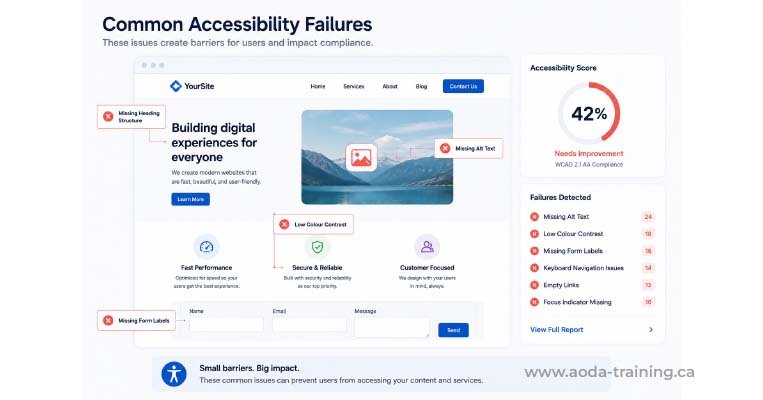
The same six failures appear every year because they are introduced at the process level, not just the code level. Low contrast is a design decision. Missing alt text is a content editor decision. Fixing individual instances without changing the process means the same failures return with the next update.
- Add axe-core to your CI/CD pipeline — block merges that introduce new accessibility errors
- Configure your CMS to require alt text or an explicit 'mark as decorative' choice before images can be published
- Define accessible colour pairs in your design system tokens — block unapproved combinations
- Train all content editors on alt text, link text, and heading structure — most failures are content decisions, not code failures
- Audit third-party widgets and component libraries before adoption — many ship with built-in failures
- Schedule an annual full audit — automated scans miss 60–70% of real failures; a manual review catches what pipelines cannot
Frequently asked questions
If my site passes an automated scan, is it WCAG compliant?
- No. Automated tools detect 30–40% of WCAG failures. Keyboard traps, focus management issues, inadequate error messages, incorrect reading order, and screen reader announcement gaps require manual testing. A passing scan means no easily-detectable failures exist. A full WCAG audit requires keyboard-only testing and screen reader evaluation to find the rest.
Can an overlay widget fix my accessibility automatically?
- No accessibility overlay can achieve WCAG conformance. Automated tools cannot determine the correct alt text for a specific image, write an error message explaining a validation failure, or make keyboard navigation decisions. The 2026 WebAIM report specifically identifies AI-generated code as a contributing factor to the increase in errors. Tools claiming instant accessibility do not satisfy WCAG requirements.
What is the fastest way to find failures on my site?
- Install axe DevTools and WAVE (both free browser extensions) and run them on your five most visited pages — under an hour, surfaces the majority of automatically-detectable failures. Then navigate those same pages with keyboard only for 30 minutes: Tab, Shift+Tab, Enter, Space, Escape, no mouse. This combination covers most high-impact failures without specialist tools.
Empower Your Team with Digital Accessibility
Ensure compliance, reduce legal risks, and build inclusive digital experiences.
Start AODA training for your team →Get a Full WCAG Audit for Your Website
Automated scans find the failures above quickly. But 60–70% of the accessibility failures on a real website require a specialist. Our audit combines automated scanning with manual keyboard and screen reader testing.
- Automated scanning with axe DevTools and WAVE across all key pages
- Screen reader testing with NVDA + Firefox (Windows) and VoiceOver + Safari (macOS / iOS)
- Image and alt text review: all five image types assessed
- Findings report: criterion, severity, location, current code, corrected code, remediation estimate
- Manual keyboard-only navigation: Tab order, focus indicators, skip links, dropdowns, modals
- Form review: labels, error handling, required fields, autocomplete attributes
- Colour contrast audit including text on images, gradients, and interactive states